
Phones sold under the same name can have different eSIM settings. Before buying a travel plan, take a few minutes to check the phone you will bring. Look up its exact model, find the eSIM setup option, and confirm that it can use a line from another provider.
Three checks to make before you buy
- Find the full model number. Open About in your phone settings and note the model identifier. This matters especially for phones bought secondhand, imported from another market, or sold by a carrier. Look up that identifier in the manufacturer's specifications. If the sales version is unclear, ask the seller which version you have.
- Look for the option to add an eSIM. Search your settings for “eSIM” or follow the paths below. An EID in your device information indicates eSIM hardware. Check it alongside the setup menu and the carrier lock status. When asking for help, share the model first and cover any EID or IMEI in public screenshots.
- Make sure the phone can use another provider. This is worth checking on a carrier-financed or used phone, even if your current SIM works fine. If the device is locked, ask the original carrier about eligibility and timing. Wait for the unlock to complete before buying a travel eSIM.
Do these checks on the phone you plan to pack. You can stop when you find the setup option. You can finish the installation after you know when your plan starts.
Where to look on iPhone, Samsung Galaxy and Google Pixel
iPhone
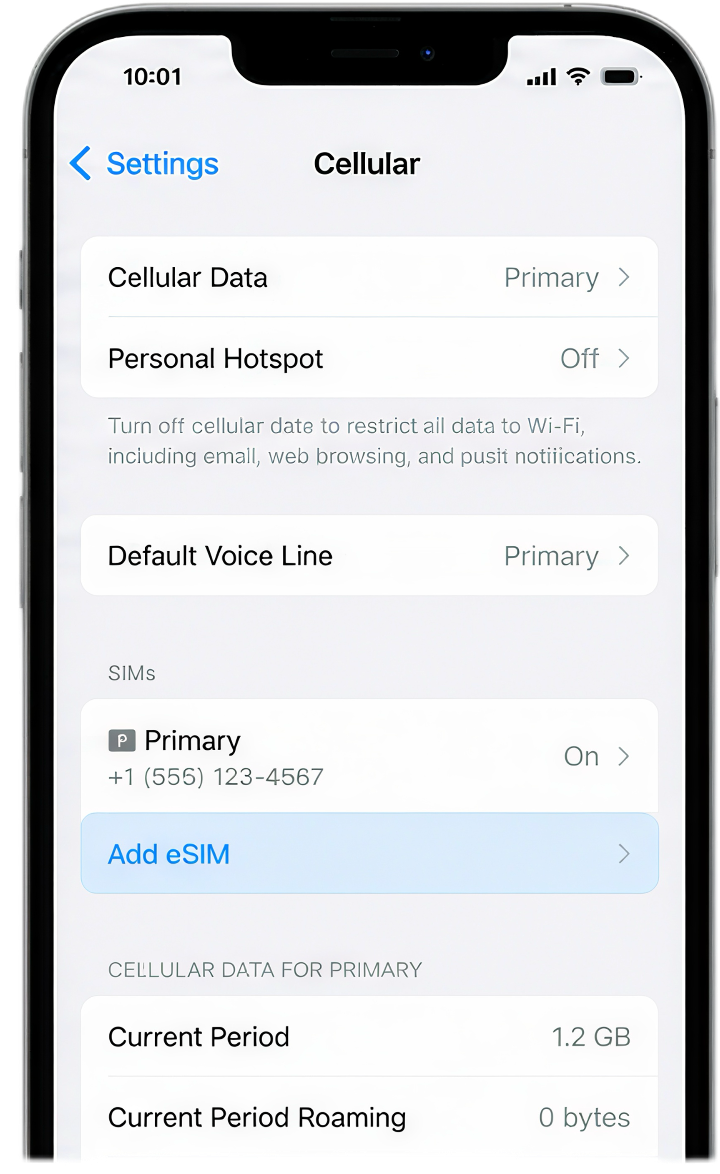
Open Settings → Cellular or Mobile Data → Add eSIM. Then go to Settings → General → About and check Carrier Lock. If you see “No SIM Restrictions,” the iPhone is unlocked. About also shows device identifiers such as EID on supported models. Tap the Model Number field if you need the identifier that starts with A.
Samsung Galaxy
Go to Settings → Connections → SIM manager and look for Add eSIM. The wording can vary with your software version and the phone's sales market. If you bought an imported Galaxy or a carrier version, check the full model code under About phone and compare it with Samsung's specifications for that version.
Google Pixel
Open Settings → Network & internet → SIMs, then choose Add SIM and look for an eSIM setup option. Older software may offer to download a SIM instead. On supported devices, About phone and SIM status can also show the EID. Check with the original carrier if you are unsure whether a carrier-sold Pixel can use another provider.
What to do if the eSIM option is missing
- Check the sales version again. Compatibility lists often group phones by their retail name. Confirm the full identifier in the manufacturer's specifications for the version you own.
- Check the software and device settings. If the manufacturer confirms support, search Settings for “eSIM,” “SIM manager,” or “download SIM.” Check for system updates. If it's a work phone, ask the device administrator whether mobile network settings are restricted.
- Ask the manufacturer or original carrier. Send the model number, software version, and a screenshot of the settings menu. If you already bought a plan and see an error, save the exact message and order number. Ask the eSIM provider about reinstalling before you remove an existing travel profile.
Keep your home number while using travel data
If your phone can keep both lines active, you can leave your home line on and use the travel eSIM for mobile data. Name the lines “Home” and “Travel Data” so you can tell which one you are changing when you land.
- Select the travel eSIM for mobile data. If your device offers automatic data switching, you can turn it off to keep the phone from switching back to your home line.
- Enable data roaming for the travel line if the plan instructions call for it. If you want to avoid using roaming data on your home line, turn off data roaming for that line.
- If you need verification texts on your home number, confirm that the two lines can stay active together and check your home carrier's rules for texts, calls, and charges abroad. A data-only plan is for internet access.
For example, after landing, choose the travel line for data and briefly switch off Wi-Fi. Load a fresh webpage or search for a place on a map. That gives you a quick way to check the connection before you need it to call a ride.
Choose when to install the plan
Installation downloads the eSIM to your phone. The validity period starts according to your plan's terms. Some plans start at installation, while others start when the travel line first connects to a supported network. If your plan allows early installation, use a reliable Wi-Fi connection before you leave. For a plan that starts at installation, pick a time closer to when you will need it.
Save the setup instructions from your order. If installation uses a QR code, you can display it on another device and scan it with your travel phone. If you have only one device, check whether its setup screen can read the code from a saved image, or whether your order includes manual setup details. Keep your installation code private.
Frequently asked questions
Can a phone with a physical SIM tray also use an eSIM?
Some phones can use a physical SIM and an eSIM together. Check whether your exact model supports eSIM and whether it allows those two lines to be active at the same time.
Can I move a travel eSIM to someone else's phone?
Transfer and reinstallation depend on the plan and provider. If a travel companion needs their own connection, decide which phone will use the plan before installing it and check that phone's compatibility first.
My eSIM is installed, but I have no internet. What should I check?
Check that your plan covers your location, then confirm the travel line is on and selected for mobile data. Check your plan's roaming instructions. If you still cannot connect, note the error message, phone model, and order number before contacting the YONI-ESIM Help Center.